> ## Documentation Index
> Fetch the complete documentation index at: https://speckle-assistant.mintlify.site/llms.txt
> Use this file to discover all available pages before exploring further.
# Version Control
> Keep track of every model
Every time new data is published to a **model**, a new **version** is created.
This is a snapshot of your model at a specific point in time, a moment in your project's history.
Versions are stored forever or until you delete a model for which they were created.
Versions help you keep track of changes, they record who published them, form which source
updated what and when, by default everyone always sees the latest version with the flexibility
to go back to a previous state if needed.
Each version includes:
* All the objects in your model
* The date and time it was created
* The person who published it
* (Optional) A short message describing what changed
This makes collaboration easier, keeps your work organized, and ensures nothing gets lost along the way.
## How do I use versions?
If you've sent data through a **connector**, you've already used versions, they're
created automatically each time you publish to a project.
Once you've published a new version, to keep things clear you can add a **version message**:
a short note that explains what the version includes. This is optional, some connectors
will suggest a default message for you, but you can decide when a versions should have a special status.
### Receiving Version Data
When **receiving data**, you can choose to:
* Stay synced with the **latest version**, or
* Load a **specific version** using its version ID
If you're synced with the latest version, you'll get a notification when someone
sends new data to the project. You can then click **Receive** to bring in the latest
updates and keep your file current.
### Accessing and Editing a Version
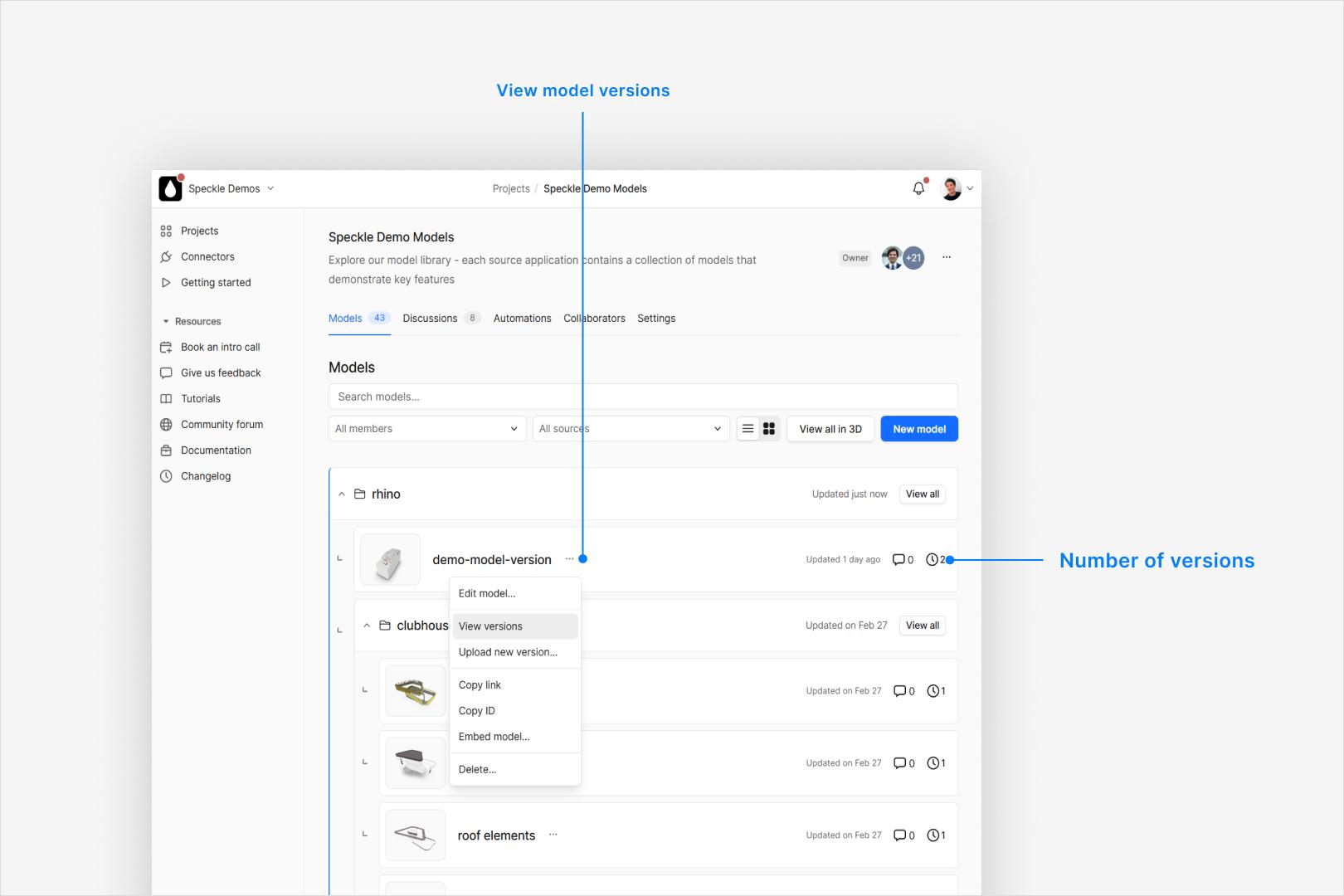
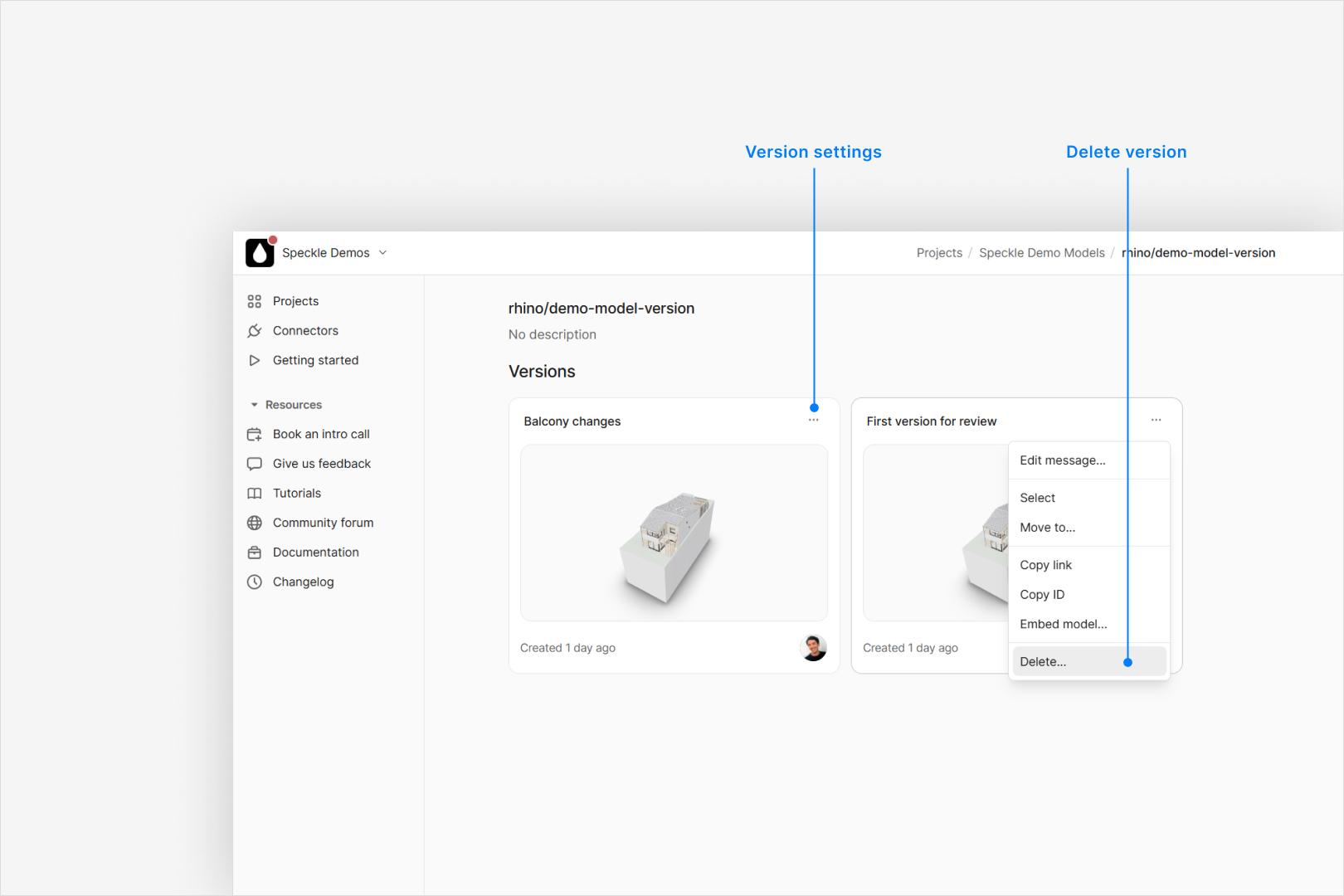
You can view and manage all versions of your model directly from your project space.
There are two main actions you can take on a version:
* **Edit the version message**
* **Delete the version**
To do this:
1. Click the three dots next to the model.
2. Select **View versions**.
3. Find the version you want to update and click the three dots in the top-right corner.
4. Choose **Edit message** or **Delete version**.
 ### Latest Version
The latest version is always the default, but you can delete that version which will
promote the immediately previous version to be the latest. Alternatively you can simply
publish a new version which will become the latest.
### Comparing Versions
Because all versions are kept and cannot be changed once published you can compare
two versions to see the differences between them. This is useful to review changes,
or to see what changed between two specific points in time. More info about [Comparing Versions](/3d-viewer/compare-versions).
## Frequently Asked Questions
You can only set the version message, potentially to something meaningful like "Approved for release".
Versions are stored indefinitely, but you may be limited as to how many you can see depending on your workspace plan.
No, once a version is published it is visible to all users with permission to view the model.
Only the owner of the model can delete versions.
You can publish as many versions as you want, but you may be limited as to how many you can see.
Yes, you can set or edit the version message for any version from the version history page.
All older versions are stored indefinitely but may be hidden if depending on your workspace plan limits.
You can compare two versions to see the differences between them. This is useful to review changes,
or to see what changed between two specific points in time. You can do this in the 3D viewer, more details
can be found in the [compare versions](/3d-viewer/compare-versions) page.
If you've published a version by mistake you can delete it. This will remove it from the model
and if you delete the latest version it will make the previous version the latest.
You can't promote a specific version to be the latest, but you can publish a new version
which will become the latest. Or delete all newer versions. Receiving a specific
version and re-publishing it will theoretically restore it, but this can be a lossy
process depending on the connector. More reliable would be to do so programmatically.
You will prompted in your connector to set a version message when you publish.
### Latest Version
The latest version is always the default, but you can delete that version which will
promote the immediately previous version to be the latest. Alternatively you can simply
publish a new version which will become the latest.
### Comparing Versions
Because all versions are kept and cannot be changed once published you can compare
two versions to see the differences between them. This is useful to review changes,
or to see what changed between two specific points in time. More info about [Comparing Versions](/3d-viewer/compare-versions).
## Frequently Asked Questions
You can only set the version message, potentially to something meaningful like "Approved for release".
Versions are stored indefinitely, but you may be limited as to how many you can see depending on your workspace plan.
No, once a version is published it is visible to all users with permission to view the model.
Only the owner of the model can delete versions.
You can publish as many versions as you want, but you may be limited as to how many you can see.
Yes, you can set or edit the version message for any version from the version history page.
All older versions are stored indefinitely but may be hidden if depending on your workspace plan limits.
You can compare two versions to see the differences between them. This is useful to review changes,
or to see what changed between two specific points in time. You can do this in the 3D viewer, more details
can be found in the [compare versions](/3d-viewer/compare-versions) page.
If you've published a version by mistake you can delete it. This will remove it from the model
and if you delete the latest version it will make the previous version the latest.
You can't promote a specific version to be the latest, but you can publish a new version
which will become the latest. Or delete all newer versions. Receiving a specific
version and re-publishing it will theoretically restore it, but this can be a lossy
process depending on the connector. More reliable would be to do so programmatically.
You will prompted in your connector to set a version message when you publish.