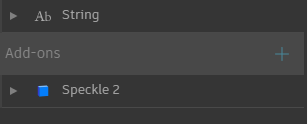
 Once installed, the **Dynamo Connector** will appear as a node package in your library as `Speckle 2`.
The `Speckle 2` package contains the main nodes necessary to use Speckle within Dynamo, including nodes for sending and receiving data, managing streams and selecting accounts.
We've also built a few nodes for more advanced use cases, as well as some handy tools for Speckle developers/hackers (these are found in the `Developer Tools` sub-section of the package).
## Streams and URLs
Speckle Streams are identified by their URLs.
Across our Dynamo and Grasshopper connectors you'll see URLs in 3 different formats:
* `https://app.speckle.systems/streams/3073b96e86` points to the `main` branch on Stream `3073b96e86`
* `https://app.speckle.systems/streams/3073b96e86/branches/dev` points to a branch named `dev` on Stream `3073b96e86`
* `https://app.speckle.systems/streams/3073b96e86/commits/604bea8cc6` points to a specific commit `604bea8cc6` on Stream `3073b96e86`
* `https://app.speckle.systems/streams/3073b96e86/objects/df7b8bafccefa791d82939dd36541189` points to a specific object `df7b8bafccefa791d82939dd36541189` on Stream `3073b96e86`
Once installed, the **Dynamo Connector** will appear as a node package in your library as `Speckle 2`.
The `Speckle 2` package contains the main nodes necessary to use Speckle within Dynamo, including nodes for sending and receiving data, managing streams and selecting accounts.
We've also built a few nodes for more advanced use cases, as well as some handy tools for Speckle developers/hackers (these are found in the `Developer Tools` sub-section of the package).
## Streams and URLs
Speckle Streams are identified by their URLs.
Across our Dynamo and Grasshopper connectors you'll see URLs in 3 different formats:
* `https://app.speckle.systems/streams/3073b96e86` points to the `main` branch on Stream `3073b96e86`
* `https://app.speckle.systems/streams/3073b96e86/branches/dev` points to a branch named `dev` on Stream `3073b96e86`
* `https://app.speckle.systems/streams/3073b96e86/commits/604bea8cc6` points to a specific commit `604bea8cc6` on Stream `3073b96e86`
* `https://app.speckle.systems/streams/3073b96e86/objects/df7b8bafccefa791d82939dd36541189` points to a specific object `df7b8bafccefa791d82939dd36541189` on Stream `3073b96e86`
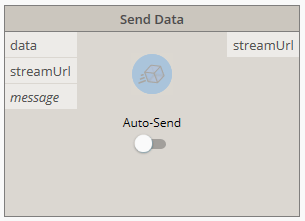 In order to select which stream to send data to, you just need to pass a stream URL to the `streamUrl` port.
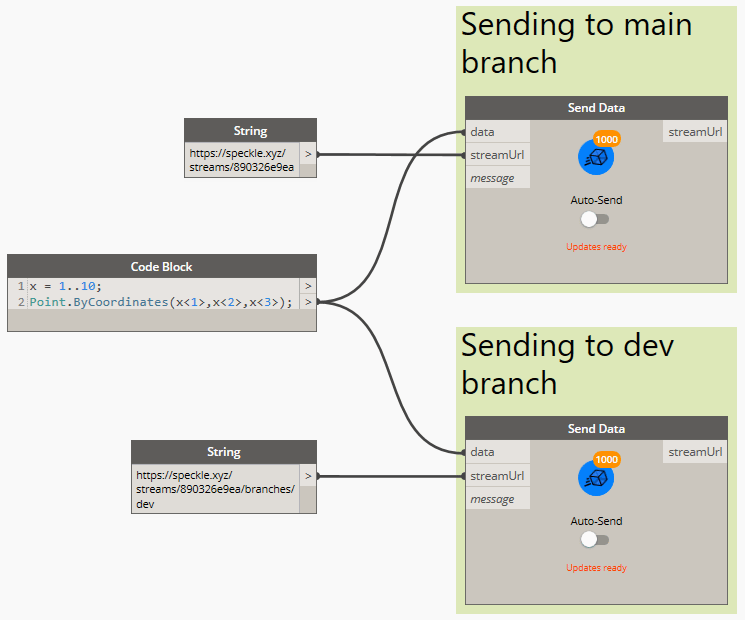 Alternatively, you can also use one of the following nodes to create / retrieve existing streams:
* [Create Stream](#create-stream)
* [Get Stream](#get-stream)
* [List Streams](#list-streams)
Alternatively, you can also use one of the following nodes to create / retrieve existing streams:
* [Create Stream](#create-stream)
* [Get Stream](#get-stream)
* [List Streams](#list-streams)
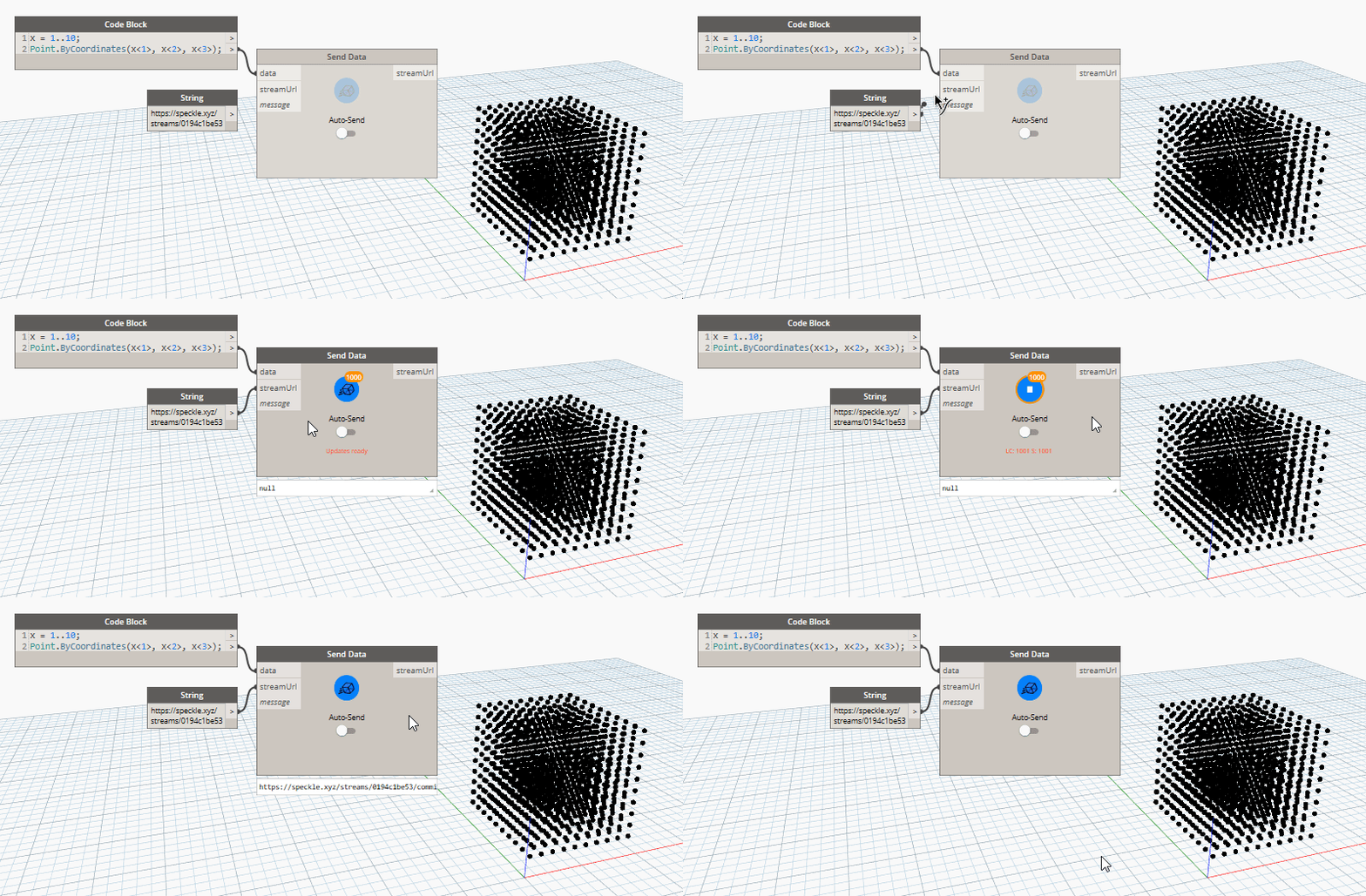 ### Viewing a stream online
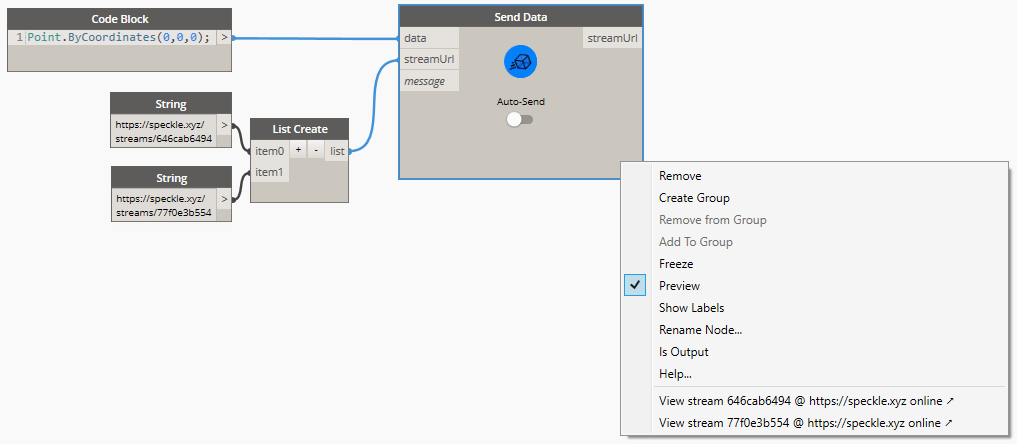
To view the sent stream online you can just right click on the sender node:
### Viewing a stream online
To view the sent stream online you can just right click on the sender node:
 ### Sending to a specific branch
When using a stream URL, by default, the `main` branch is used to send and receive data.
To send to a specific branch, simply use the branch URL, such as: `https://app.speckle.systems/streams/3073b96e86/branches/dev`.
## Receiving data
Receiving data is very simple, you just need a `Receive Data` node, and a stream URL.
### Sending to a specific branch
When using a stream URL, by default, the `main` branch is used to send and receive data.
To send to a specific branch, simply use the branch URL, such as: `https://app.speckle.systems/streams/3073b96e86/branches/dev`.
## Receiving data
Receiving data is very simple, you just need a `Receive Data` node, and a stream URL.
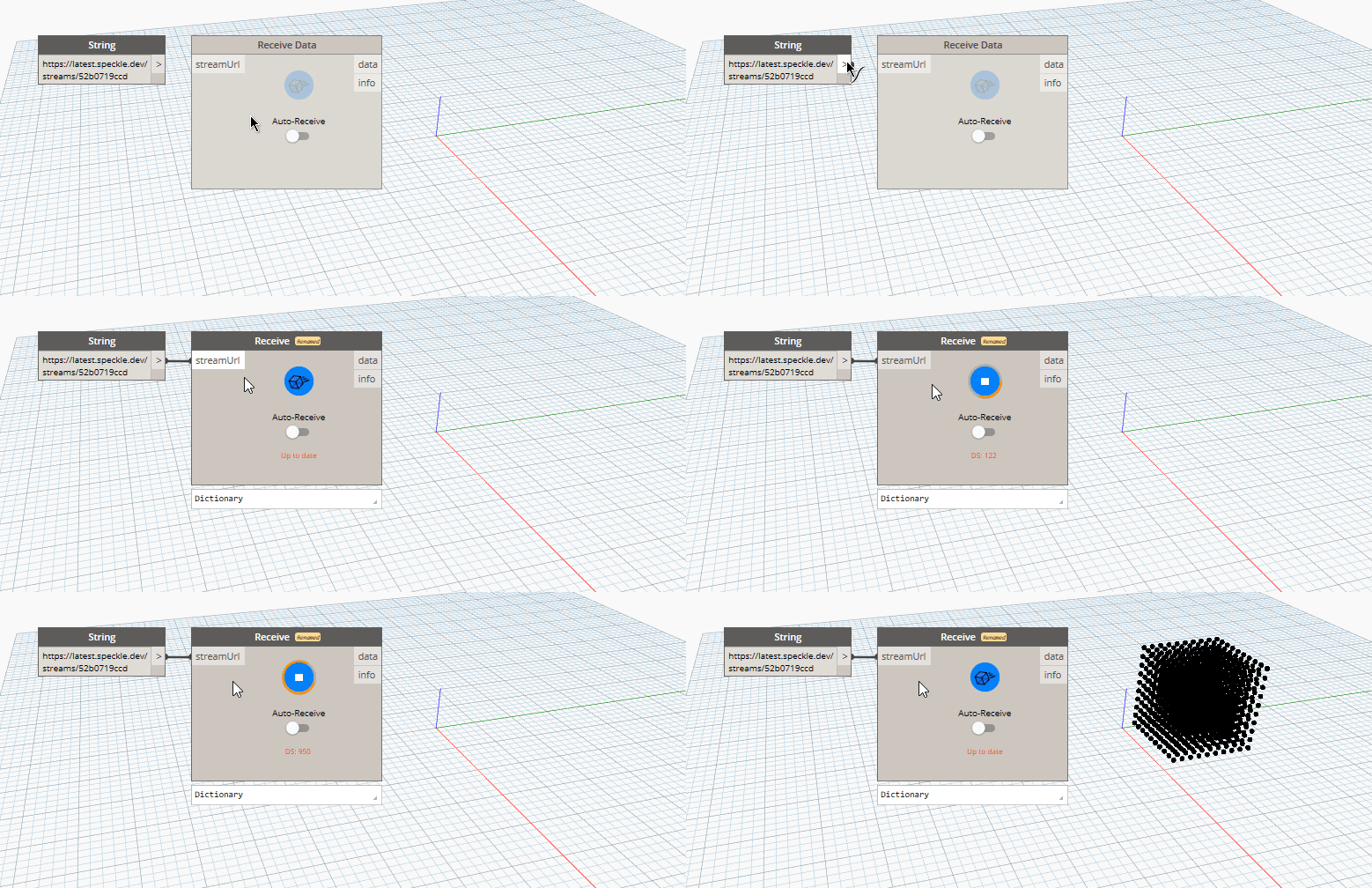 When new data is pushed to this stream a notification will appear on the receive node.
### Auto receiving
By using the toggle on the node, you can enable/disable auto receiving. If enabled, new data pushed to this stream will be pulled automatically as it's available.
### Receiving a specific branch
When using a stream URL, the `main` branch is used to send and receive data by default.
You can also receive data from a specific branch; simply use the branch URL, such as: `https://app.speckle.systems/streams/3073b96e86/branches/dev`.
### Receiving a specific commit
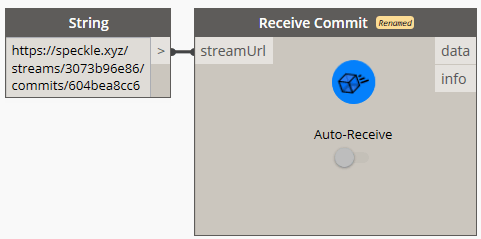
We've already seen how to retrieve data from streams and branches. It's possible to go even deeper, retrieving data from specific commits. To do this, simply use the commit URL, such as: `https://app.speckle.systems/streams/3073b96e86/commits/604bea8cc6`
When new data is pushed to this stream a notification will appear on the receive node.
### Auto receiving
By using the toggle on the node, you can enable/disable auto receiving. If enabled, new data pushed to this stream will be pulled automatically as it's available.
### Receiving a specific branch
When using a stream URL, the `main` branch is used to send and receive data by default.
You can also receive data from a specific branch; simply use the branch URL, such as: `https://app.speckle.systems/streams/3073b96e86/branches/dev`.
### Receiving a specific commit
We've already seen how to retrieve data from streams and branches. It's possible to go even deeper, retrieving data from specific commits. To do this, simply use the commit URL, such as: `https://app.speckle.systems/streams/3073b96e86/commits/604bea8cc6`
 ### Receiving a specific object
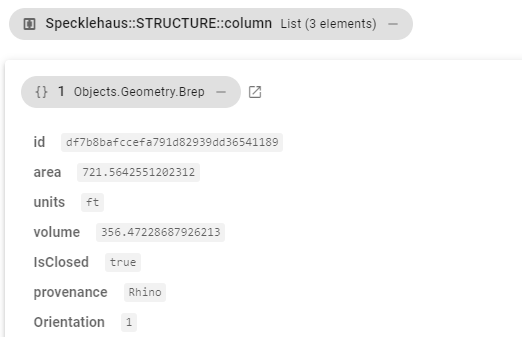
Similarly to commits, you can also point the receive node to a specific object. To do this, simply use the object's URL, such as: `https://app.speckle.systems/streams/3073b96e86/objects/df7b8bafccefa791d82939dd36541189`.
Like commits, objects in a commit cannot be edited, so the data received using such a URL will always be consistent. You can find the ID of an object from the Speckle Web interface:
### Receiving a specific object
Similarly to commits, you can also point the receive node to a specific object. To do this, simply use the object's URL, such as: `https://app.speckle.systems/streams/3073b96e86/objects/df7b8bafccefa791d82939dd36541189`.
Like commits, objects in a commit cannot be edited, so the data received using such a URL will always be consistent. You can find the ID of an object from the Speckle Web interface:
 ### Viewing a stream online
To view the received stream online you can just right-click on the receiver node:
## Creating custom objects
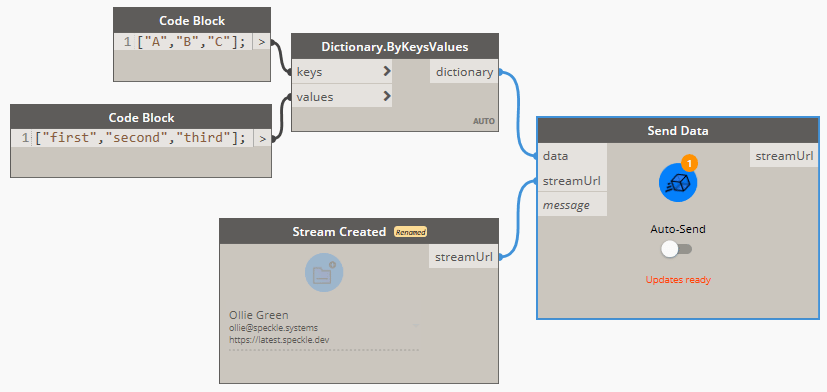
A `Custom Object` is a Base Object with custom properties assigned to it. It's basically a custom data structure you can create to send data in a specific format that you define.
In Dynamo, we use dictionaries to represent custom objects since they are natively supported, so creating custom objects is as simple as creating a dictionary containing the keys and values you wish to include in the `Base` object.
This dictionary will be automatically converted to a `Base` object during the *Send* operation.
### Viewing a stream online
To view the received stream online you can just right-click on the receiver node:
## Creating custom objects
A `Custom Object` is a Base Object with custom properties assigned to it. It's basically a custom data structure you can create to send data in a specific format that you define.
In Dynamo, we use dictionaries to represent custom objects since they are natively supported, so creating custom objects is as simple as creating a dictionary containing the keys and values you wish to include in the `Base` object.
This dictionary will be automatically converted to a `Base` object during the *Send* operation.
 ## All Speckle nodes
### Send data
The **Send Data** node performs sending operations. Data is usually sent to a Speckle Server, but the node also supports sending to a different data storage using *transports*. Whenever possible, the *Send* node will try to convert any compatible objects into Speckle format.
There is also an switch you can toggle to enable the node to send automatically the data whenever it changes.
#### Input
* *data*: This port will accept almost anything you give it! If the objects provided are not `Base` objects, it will also perform the conversion to Speckle automatically.
* *streamUrl*: Supports any generated stream from within the `Stream` component category, but also *stream urls* in text format.
* *message (optional)*: The message you want to attach to the *commit* when you send the data. Defaults to `"Dynamo push"`.
#### Output
* *streamUrl*: The *commit url* pointing to the objects in the Speckle server.
### Receive data
## All Speckle nodes
### Send data
The **Send Data** node performs sending operations. Data is usually sent to a Speckle Server, but the node also supports sending to a different data storage using *transports*. Whenever possible, the *Send* node will try to convert any compatible objects into Speckle format.
There is also an switch you can toggle to enable the node to send automatically the data whenever it changes.
#### Input
* *data*: This port will accept almost anything you give it! If the objects provided are not `Base` objects, it will also perform the conversion to Speckle automatically.
* *streamUrl*: Supports any generated stream from within the `Stream` component category, but also *stream urls* in text format.
* *message (optional)*: The message you want to attach to the *commit* when you send the data. Defaults to `"Dynamo push"`.
#### Output
* *streamUrl*: The *commit url* pointing to the objects in the Speckle server.
### Receive data
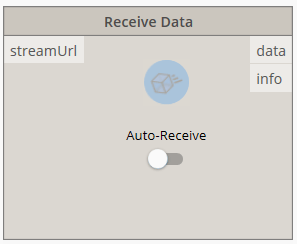 The **Receive Data** node fetches data from a specified `Stream` or any other valid `Transport`. Whenever possible, the receiver node will try to convert all Speckle objects into compatible objects.
#### Inputs
* *streamUrl*: The URL of any Speckle stream, branch, commit or object.
#### Outputs
* *data*: Any data that was received from the stream.
### Send local data
The **Receive Data** node fetches data from a specified `Stream` or any other valid `Transport`. Whenever possible, the receiver node will try to convert all Speckle objects into compatible objects.
#### Inputs
* *streamUrl*: The URL of any Speckle stream, branch, commit or object.
#### Outputs
* *data*: Any data that was received from the stream.
### Send local data
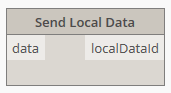 The **Send Local Data** node performs sending operations directly to the users's local database.
#### Inputs
* *data*: The data to be sent locally. This port will accept almost anything you give it. If the objects provided are not `Base` objects, it will also perform the conversion to Speckle automatically.
#### Outputs
* *localDataId*: The unique `id` for the data that was locally sent.
### Receive local data
The **Send Local Data** node performs sending operations directly to the users's local database.
#### Inputs
* *data*: The data to be sent locally. This port will accept almost anything you give it. If the objects provided are not `Base` objects, it will also perform the conversion to Speckle automatically.
#### Outputs
* *localDataId*: The unique `id` for the data that was locally sent.
### Receive local data
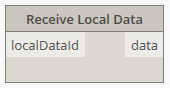 The **Receive Local Data** node performs receive operations in the same way as the [Receive Data](#receive-node) node, the only difference is that data is received locally from the Speckle's user local database, instead of the server or any other transport.
#### Inputs
* *localDataId*: The unique `id` for the data you want to fetch locally. This would be provided from a [Send Local Data](#local-send-node) node.
#### Outputs
* *Data*: The data that was received. This port will accept almost anything you give it. If the objects provided are not `Base` objects, it will also perform the conversion to Speckle automatically.
### Select account
The **Receive Local Data** node performs receive operations in the same way as the [Receive Data](#receive-node) node, the only difference is that data is received locally from the Speckle's user local database, instead of the server or any other transport.
#### Inputs
* *localDataId*: The unique `id` for the data you want to fetch locally. This would be provided from a [Send Local Data](#local-send-node) node.
#### Outputs
* *Data*: The data that was received. This port will accept almost anything you give it. If the objects provided are not `Base` objects, it will also perform the conversion to Speckle automatically.
### Select account
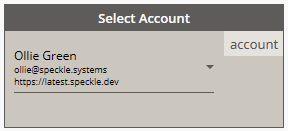 The **Select Account** node provides a fast way of selecting different Speckle accounts.
> Accounts must be set-up in your computer using the **Speckle Manager**.
### Create stream
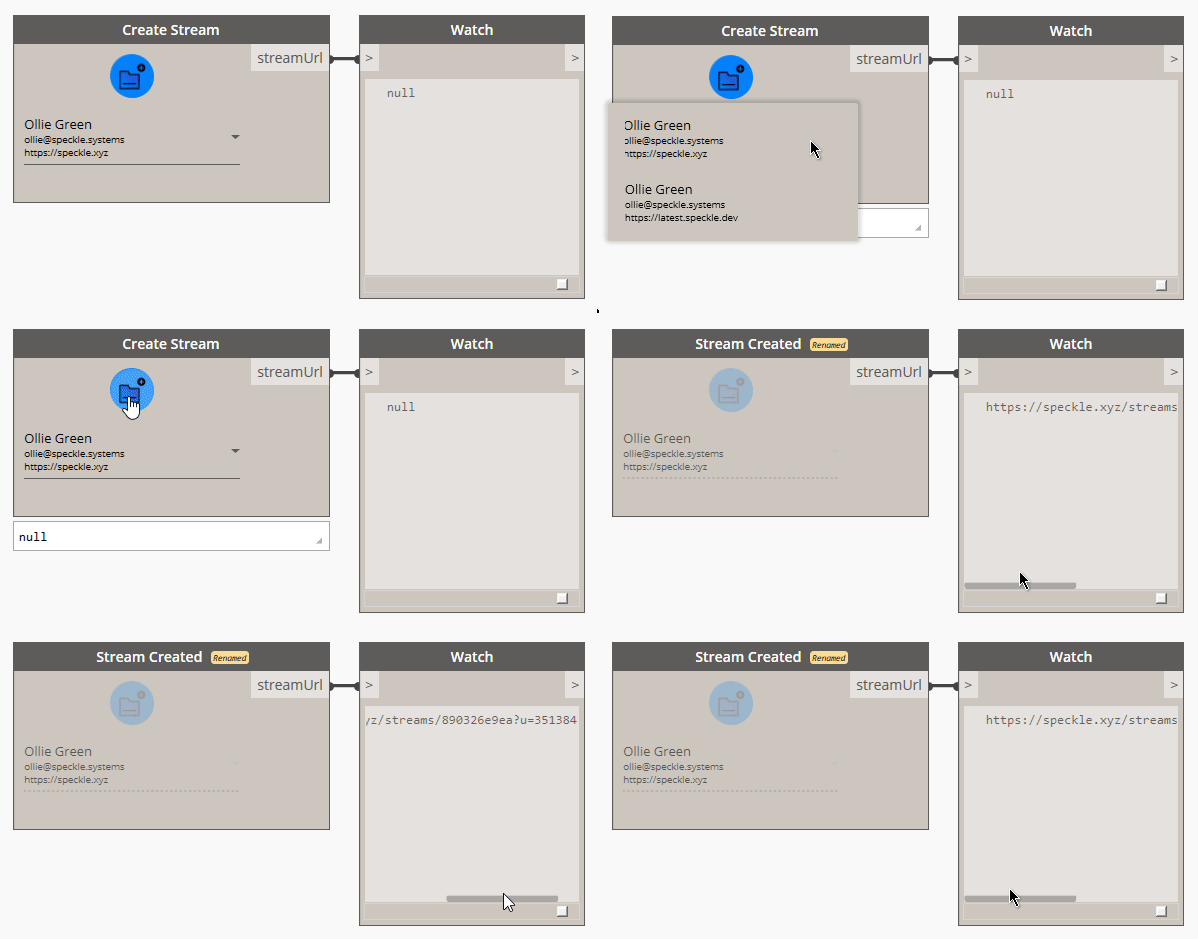
To create a new stream, right-click on the canvas and search for the `Create Stream` node. This node has a custom UI that allows you to select a specific account to use, and a button to confirm the stream creation.
The **Select Account** node provides a fast way of selecting different Speckle accounts.
> Accounts must be set-up in your computer using the **Speckle Manager**.
### Create stream
To create a new stream, right-click on the canvas and search for the `Create Stream` node. This node has a custom UI that allows you to select a specific account to use, and a button to confirm the stream creation.
 #### Viewing the stream online
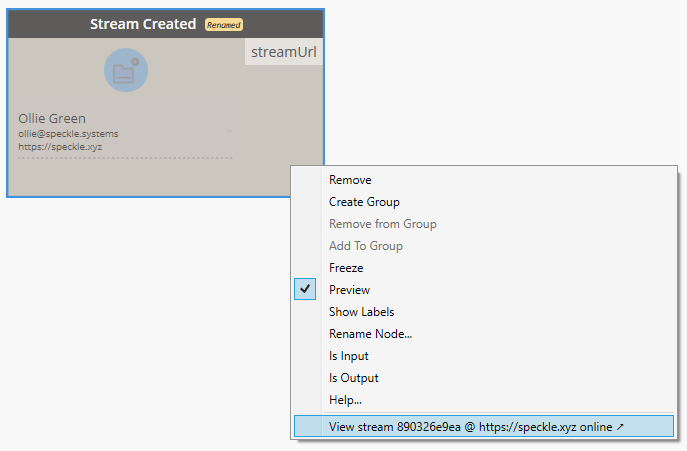
To view the newly-created stream online you can just right click on the node:
#### Viewing the stream online
To view the newly-created stream online you can just right click on the node:
 #### Inputs
> This node has no inputs.
#### Outputs
* *streamUrl*: A URL, pointing to the newly-created stream.
### Get stream
#### Inputs
> This node has no inputs.
#### Outputs
* *streamUrl*: A URL, pointing to the newly-created stream.
### Get stream
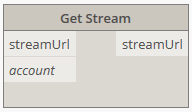 The **Get Stream** node will try to retrieve an existing `Stream`, given its URL and a specific account to access that stream with. This may be useful if there are multiple accounts registered on the same machine and a certain stream requires a specific account to be accessible.
#### Inputs
* *streamUrl*: The URL of any Speckle stream, branch, commit or object.
* *account (optional)*: A Speckle account, provided by the **Accounts node**. If no account is provided, the *default account* will be used.
#### Outputs
* *stream*: A `Stream` object pointing to existing stream. If the stream doesn't exist, an error will be shown.
### List streams
The **Get Stream** node will try to retrieve an existing `Stream`, given its URL and a specific account to access that stream with. This may be useful if there are multiple accounts registered on the same machine and a certain stream requires a specific account to be accessible.
#### Inputs
* *streamUrl*: The URL of any Speckle stream, branch, commit or object.
* *account (optional)*: A Speckle account, provided by the **Accounts node**. If no account is provided, the *default account* will be used.
#### Outputs
* *stream*: A `Stream` object pointing to existing stream. If the stream doesn't exist, an error will be shown.
### List streams
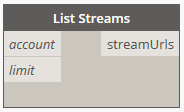 The **List Streams** node returns a specified amount of streams available in an account. For performance reasons, it has been limited to fetching a maximum of 20 streams.
#### Inputs
* *account (optional)*: A Speckle account, provided by the **Accounts node**. If no account is provided, the *default account* will be used.
* *limit (optional)*: The number of streams to fetch from the server.
#### Outputs
* *streams*: List of `Stream` objects available to the specified account.
### Stream details
The **List Streams** node returns a specified amount of streams available in an account. For performance reasons, it has been limited to fetching a maximum of 20 streams.
#### Inputs
* *account (optional)*: A Speckle account, provided by the **Accounts node**. If no account is provided, the *default account* will be used.
* *limit (optional)*: The number of streams to fetch from the server.
#### Outputs
* *streams*: List of `Stream` objects available to the specified account.
### Stream details
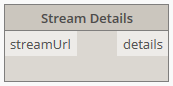 The **Stream Details** node returns all relevant information related to a specific `Stream`.
#### Inputs
* *stream*: Supports any generated stream from within the `Stream` component category, but also *stream urls* in text format.
#### Output
* *stream*: The unique `id` that identifies the stream.
* *name*: The name of the stream.
* *description*: The description of the stream.
* *createdAt*: The date this stream was created.
* *updatedAt*: The date marking the last time the stream was updated.
* *public*: Boolean value indicating if the stream is public or private.
* *collaborators*: A list of collaborators that have access to this stream, as well as their roles.
* *branches*: A list of available branches for this stream.
### Update stream
The **Stream Details** node returns all relevant information related to a specific `Stream`.
#### Inputs
* *stream*: Supports any generated stream from within the `Stream` component category, but also *stream urls* in text format.
#### Output
* *stream*: The unique `id` that identifies the stream.
* *name*: The name of the stream.
* *description*: The description of the stream.
* *createdAt*: The date this stream was created.
* *updatedAt*: The date marking the last time the stream was updated.
* *public*: Boolean value indicating if the stream is public or private.
* *collaborators*: A list of collaborators that have access to this stream, as well as their roles.
* *branches*: A list of available branches for this stream.
### Update stream
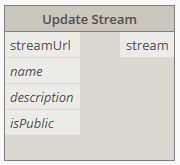 The **Update Stream** node allows for updating a stream's *name*, its *description* and whether it is *public* (publicly available to read by anyone with the *stream url*) or *private* (only invited collaborators can view this stream).
#### Inputs
* *streamUrl*: The URL of a stream, branch, commit or object.
* *name (optional)*: Text string with the new name for the stream.
* *description (optional)*: Text string with the new description for the stream.
* *isPublic (optional)*: Boolean value to activate/deactivate this stream's *link sharing*.
#### Output
* *streamUrl*: The URL of the updated stream.
### Developer tools
These nodes were developed exclusively for testing/development purposes. If you don't know what these are, you most likely won't ever need them.
#### Convert to Speckle
The **Update Stream** node allows for updating a stream's *name*, its *description* and whether it is *public* (publicly available to read by anyone with the *stream url*) or *private* (only invited collaborators can view this stream).
#### Inputs
* *streamUrl*: The URL of a stream, branch, commit or object.
* *name (optional)*: Text string with the new name for the stream.
* *description (optional)*: Text string with the new description for the stream.
* *isPublic (optional)*: Boolean value to activate/deactivate this stream's *link sharing*.
#### Output
* *streamUrl*: The URL of the updated stream.
### Developer tools
These nodes were developed exclusively for testing/development purposes. If you don't know what these are, you most likely won't ever need them.
#### Convert to Speckle
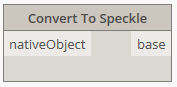 The **Convert to Speckle** node will convert any supported objects (such as lines, curves, meshes...) into Speckle ones.
This node was developed for testing/development purposes, as the Send/Receive nodes will already perform this conversion step automatically.
#### Convert to Native
The **Convert to Speckle** node will convert any supported objects (such as lines, curves, meshes...) into Speckle ones.
This node was developed for testing/development purposes, as the Send/Receive nodes will already perform this conversion step automatically.
#### Convert to Native
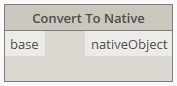 The **Convert to Native** node will convert any supported Speckle objects into compatible objects.
This node was developed for testing/development purposes.
#### Serialize to JSON
The **Convert to Native** node will convert any supported Speckle objects into compatible objects.
This node was developed for testing/development purposes.
#### Serialize to JSON
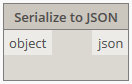 The **Serialize to JSON** node will convert any Speckle object into `JSON` formatted text.
#### Deserialize from JSON
The **Serialize to JSON** node will convert any Speckle object into `JSON` formatted text.
#### Deserialize from JSON
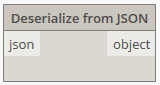 The **Deserialize from JSON** node will convert a serialized Speckle object in `JSON` format into `Base` Speckle objects.
#### Server Transport
The **Deserialize from JSON** node will convert a serialized Speckle object in `JSON` format into `Base` Speckle objects.
#### Server Transport
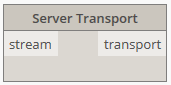 Creates a connection to a specific Speckle Server.
#### SQLite Transport
Creates a connection to a specific Speckle Server.
#### SQLite Transport
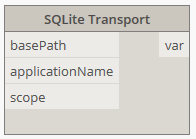 Creates a connection to a specific SQLite database.
#### Disk Transport
Creates a connection to a specific SQLite database.
#### Disk Transport
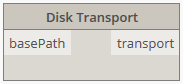 Creates a connection to a specific file in the computer's disk, where the data will be saved in JSON format.
#### Memory Transport
Creates a connection to a specific file in the computer's disk, where the data will be saved in JSON format.
#### Memory Transport
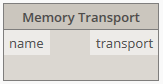 Creates a connection to in-memory storage.